Why not build up an operating system from the command line up the Debian way?
For this tutorial we’ll be installing the stable branch of debian to be a desktop operating system. Benefits of this are, less bugs to work around (stability is great), and you can switch to testing or the unstable branch later (if you so wish).
1. Download the iso here (the torrent option is faster).
Special considerations:
Pay attention to i386 and amd64 download links. If your processor only handles 32 bit processing, download the i386 version of the netinstall iso. If your processor does 64 bit processing, then you’re free to install the i386 or the amd64 version. If you have no special need for a 32 bit operating system with a 64 bit capable processor, then always install the 64 bit version.
2.1 Burn the iso to cd.
Burning software suggestions if you don’t have a program yet…Windows users seem to enjoy imgburn or infrarecorder. If burning from linux, try k3b or brasero.
I only see burning to a cd for safe keeping, or someone has a computer too old to have a feature for booting from usb.
2.2 Make a bootable usb drive.
If windows or linux, I recommend unetbootin. Unetbootin is very easy to use. Format usb drive as fat32, start unetbootin, select your iso file, select usb device, hit ok and wait for it to finish. Or if in linux, you could just use “dd” (data description) in command line.
3. Booting.
If booting from usb or cd, then you’ll want to take a look at your boot order. Hopefully your computer has a button you can hit at boot to select a boot device (dell is f12, hp is f9, acer is also f12, mac is holding down the option key).
4. Installing.
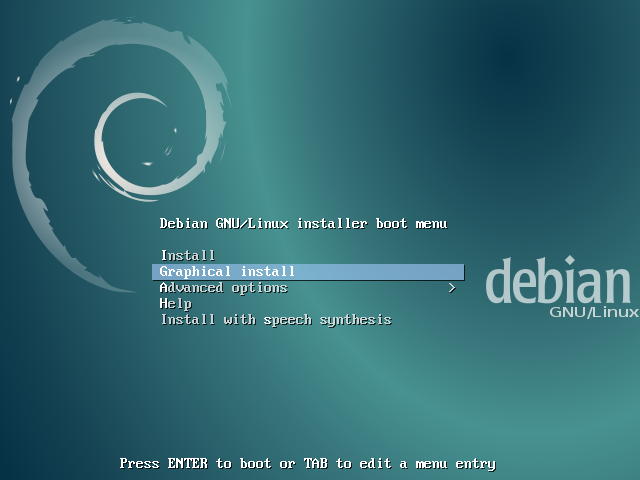
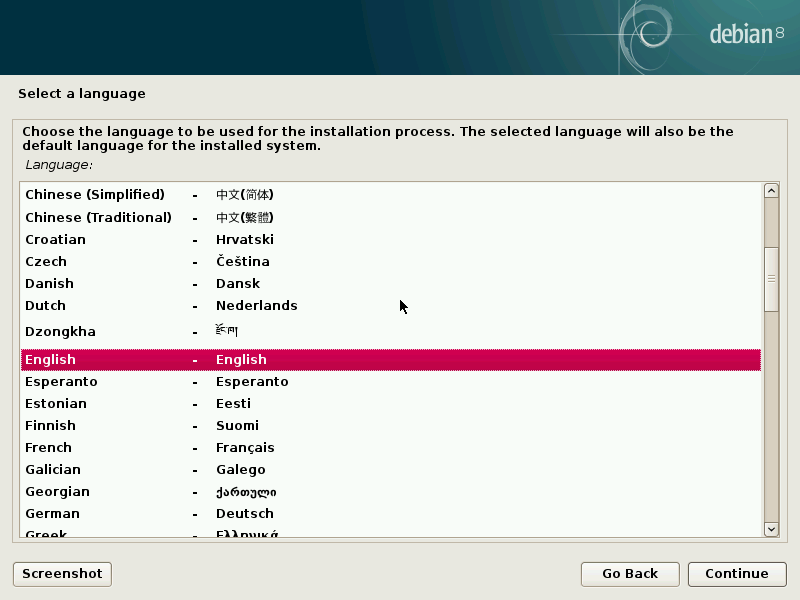
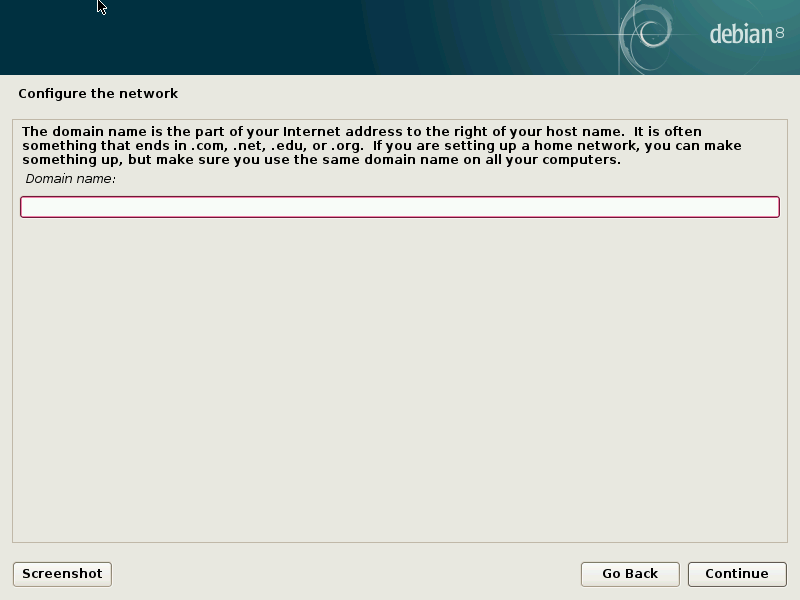
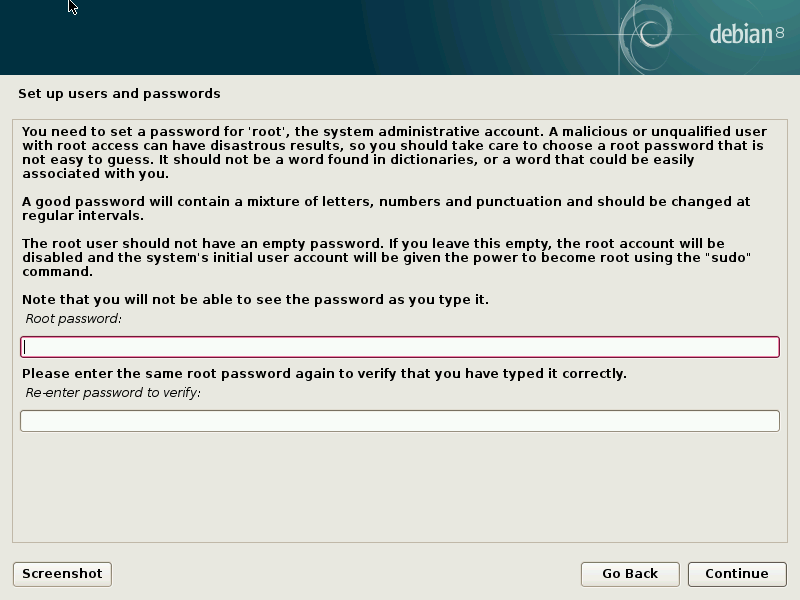
The debian installer is more complicated compared to ubiquity from ubuntu, but otherwise gets the same job done. Here’s a screen cast that shows you what to expect from the debian installer from beginning to finish, left to right.
-
- Netinstall boot menu.
-
- Choose language.
-
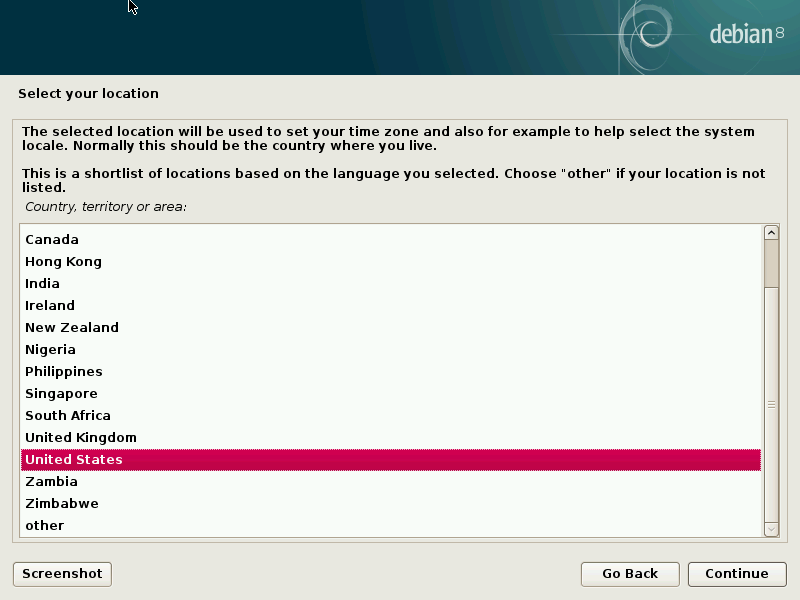
- Choose location.
-
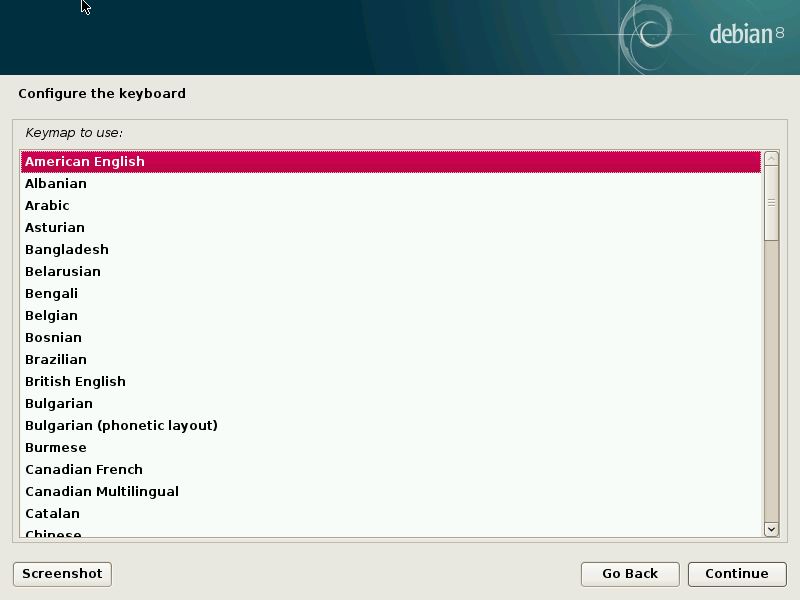
- Configure keyboard.
-
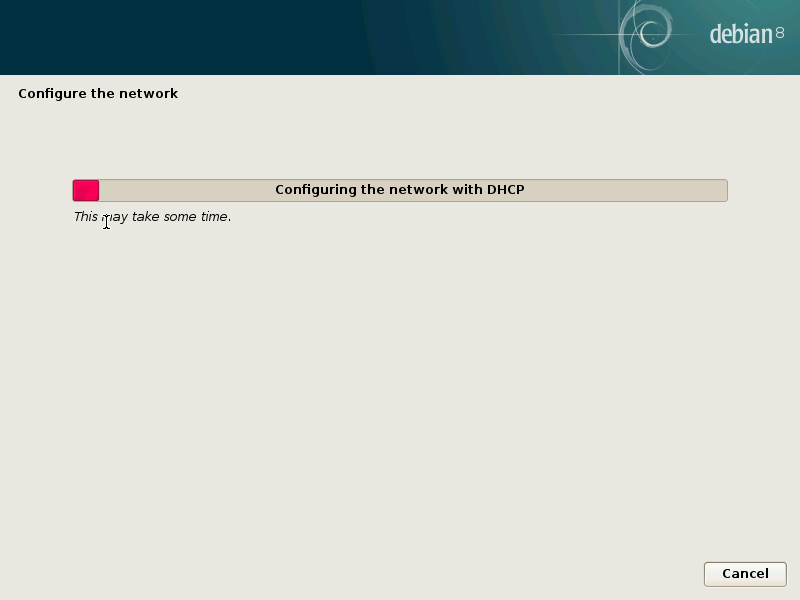
- Network auto configuration.
-
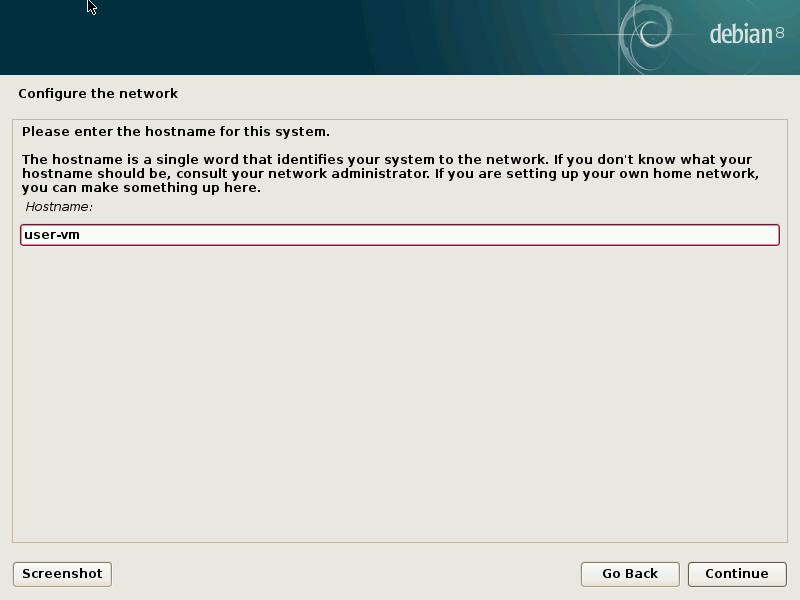
- Hostname.
-
- Domain.
-
- Root password.
-
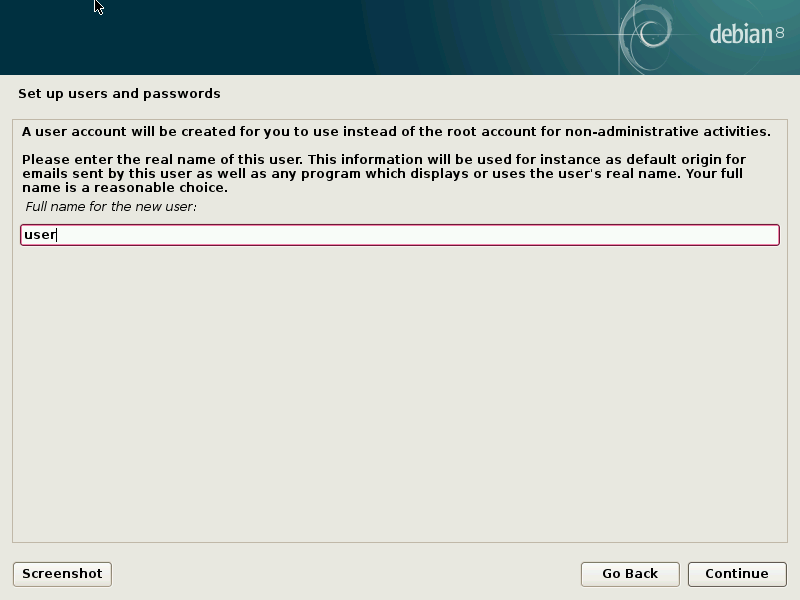
- User name.
-
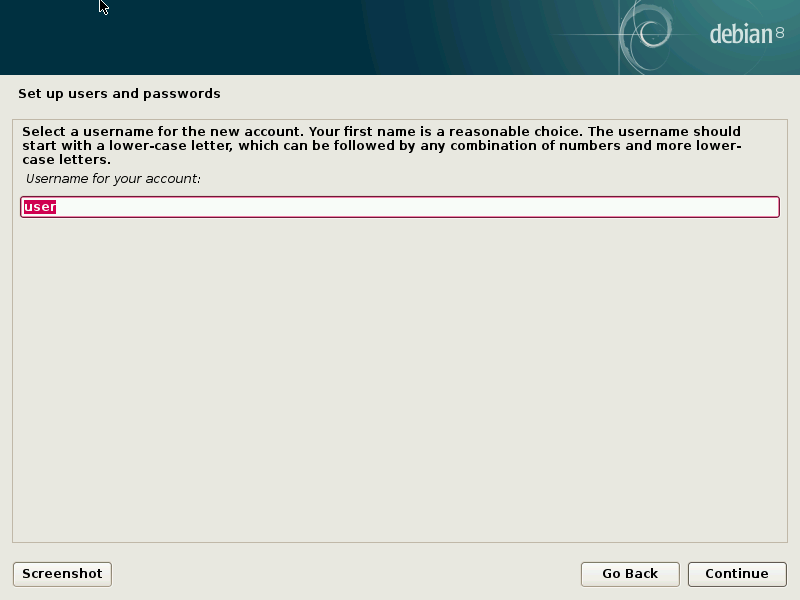
- User name part two.
-
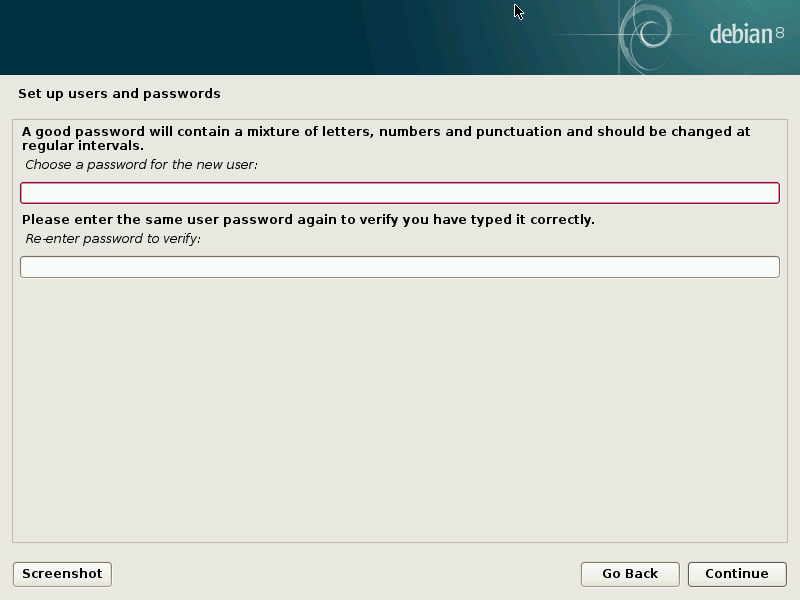
- User password.
-
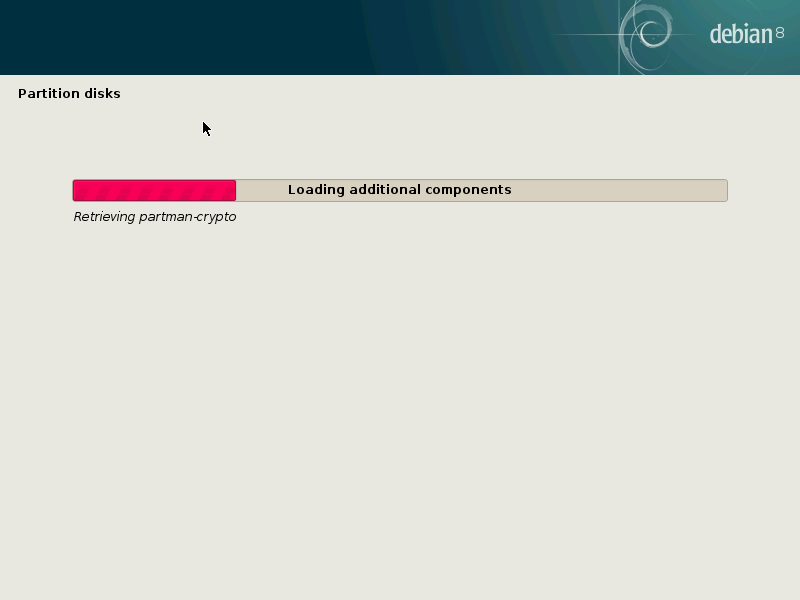
- Disk partitioner auto configuration.
-
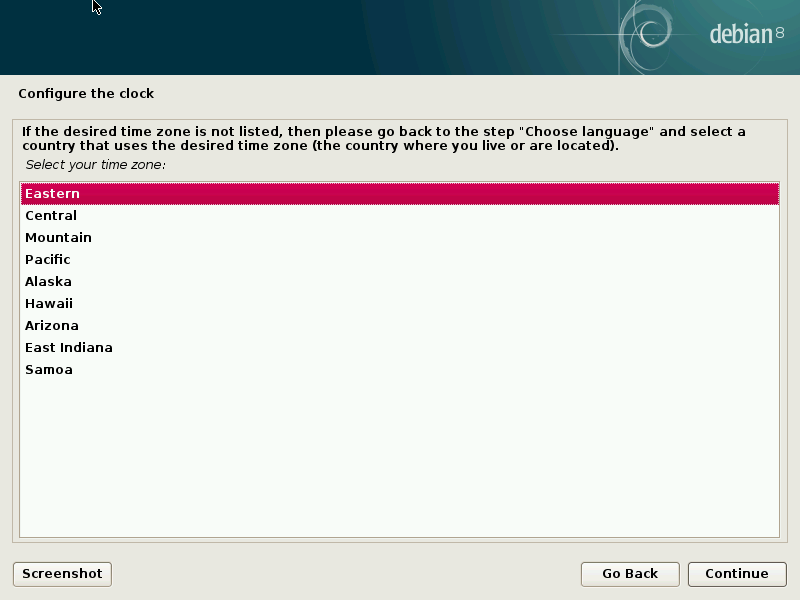
- Choose time zone.
-
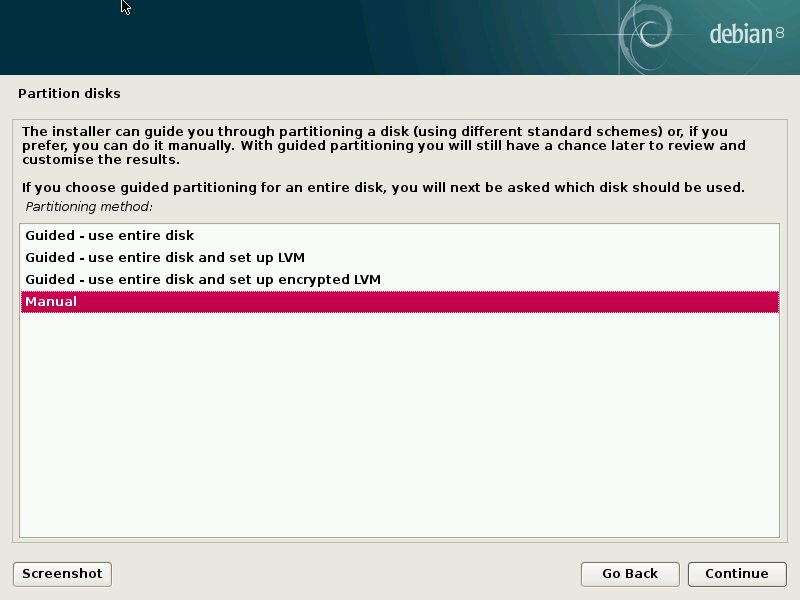
- Manual disk partition option.
-
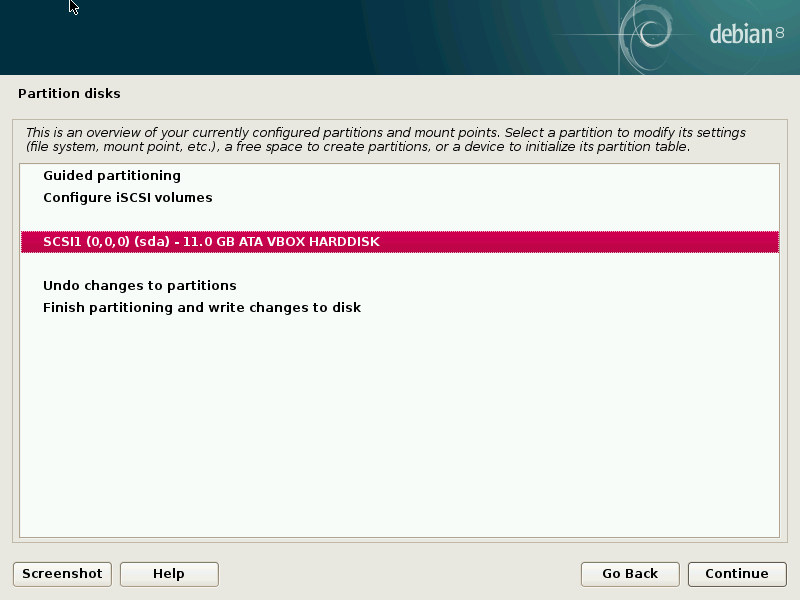
- Selected hard disk.
-
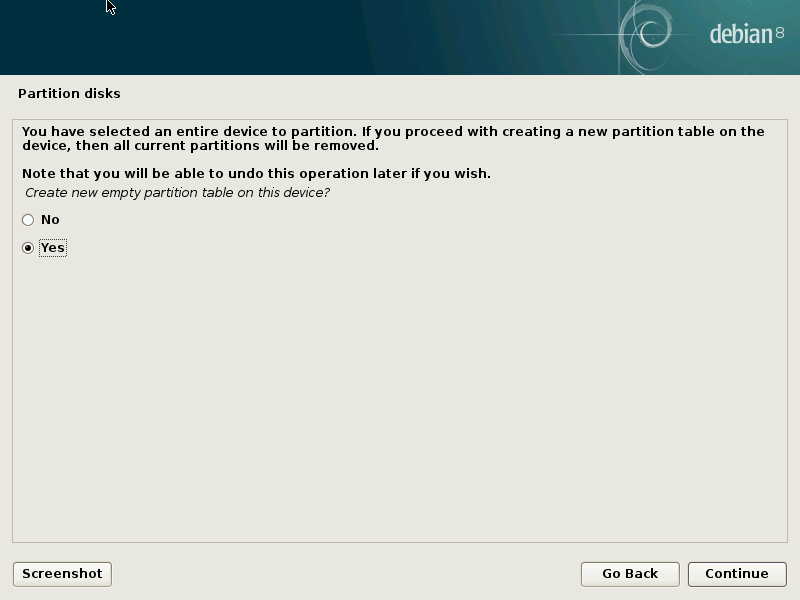
- Partition table creation warning.
-
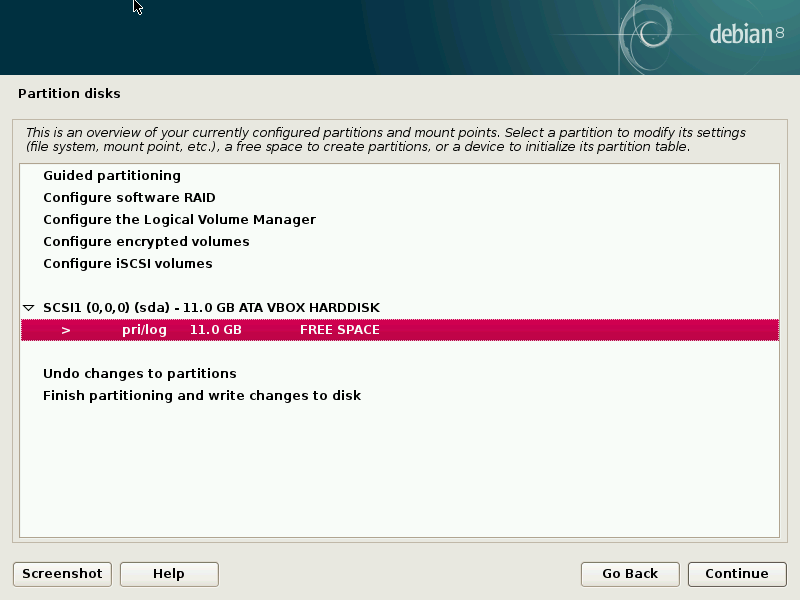
- Creating a swap partition.
-
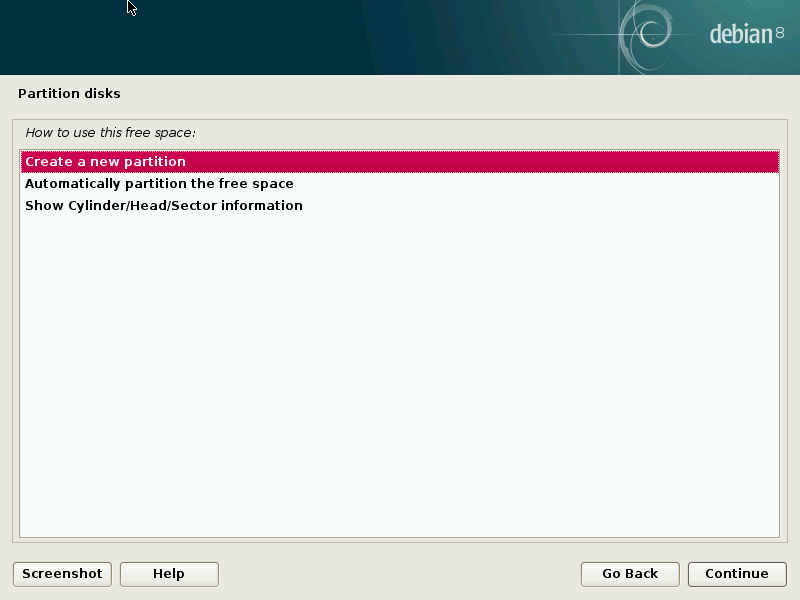
- Yes we want a new partition.
-
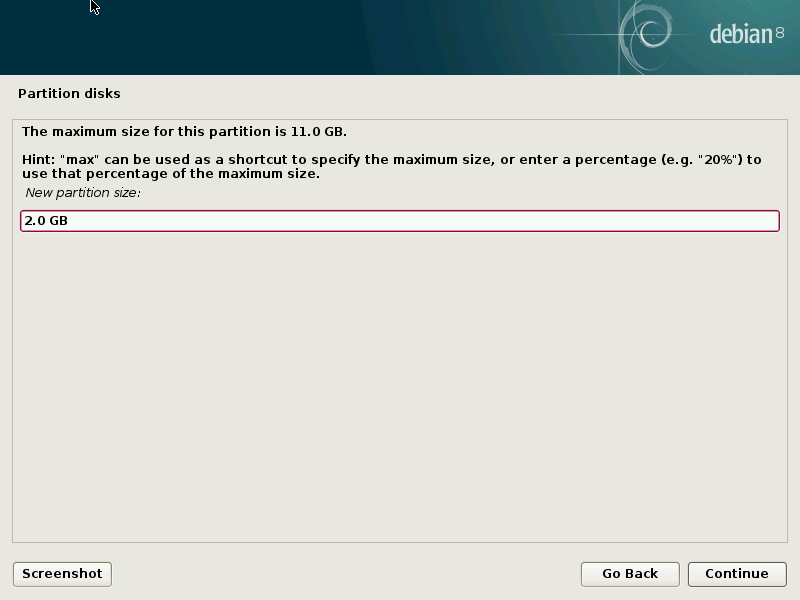
- 2gb is a decent size for a swap partition.
-
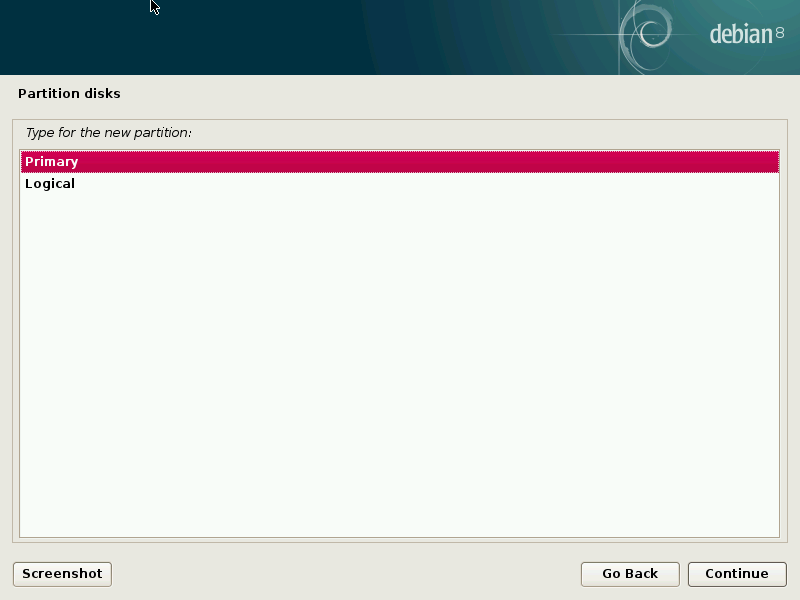
- Primary partitions are easier to deal with.
-
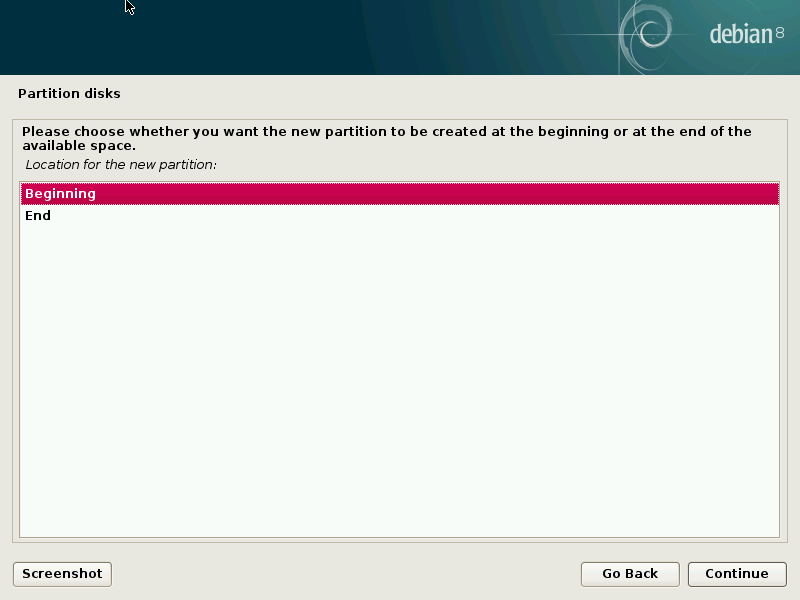
- Swap will be at the beginning of the disk.
-
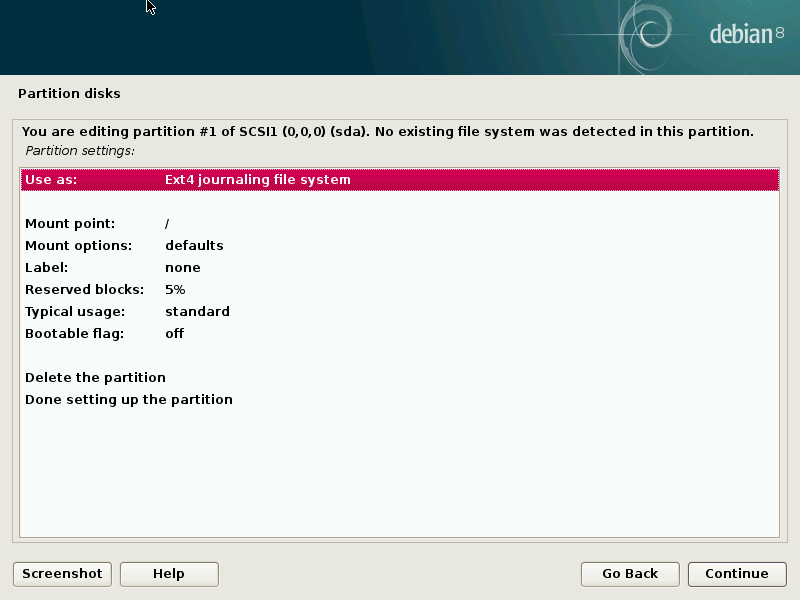
- Time to make it into swap.
-
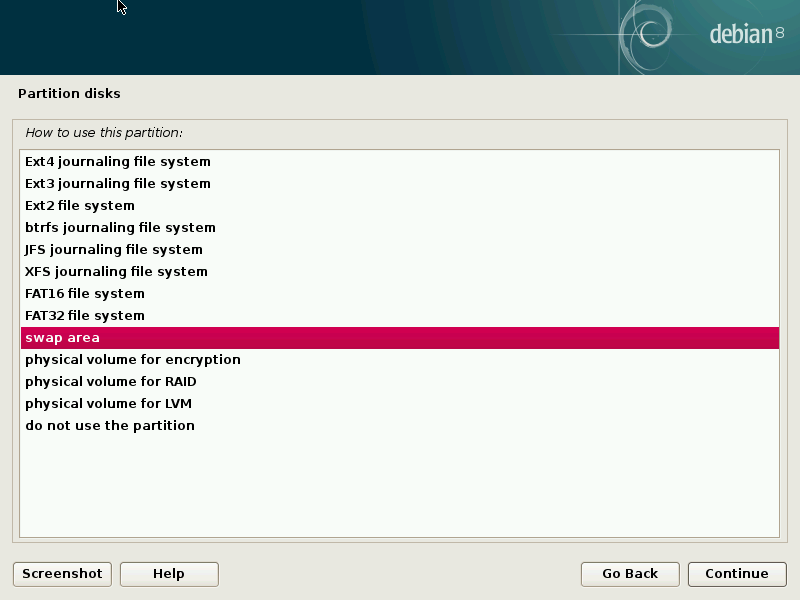
- How you change it to swap.
-
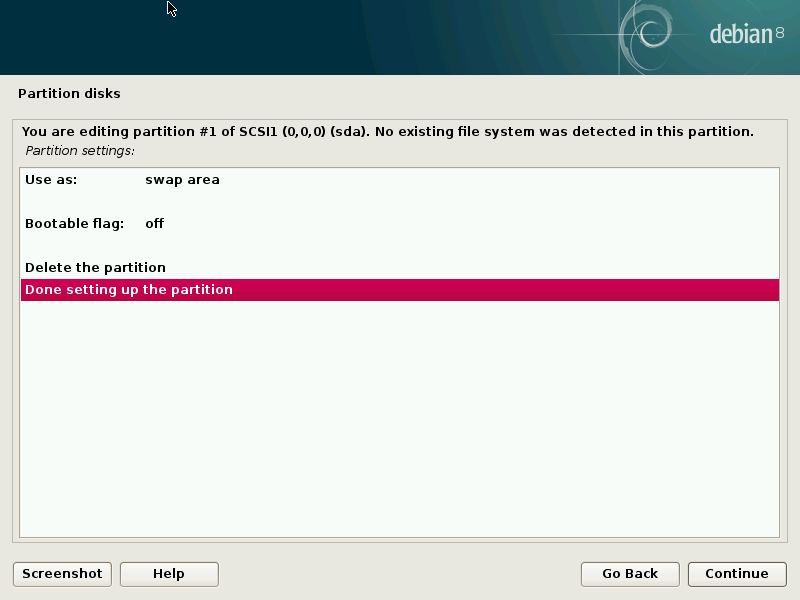
- Done setting up swap partition.
-
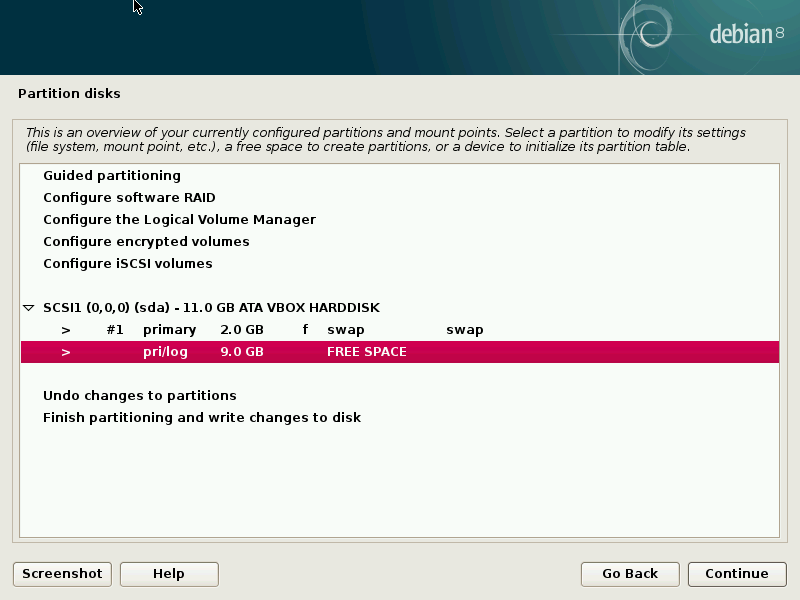
- Time for root partition.
-
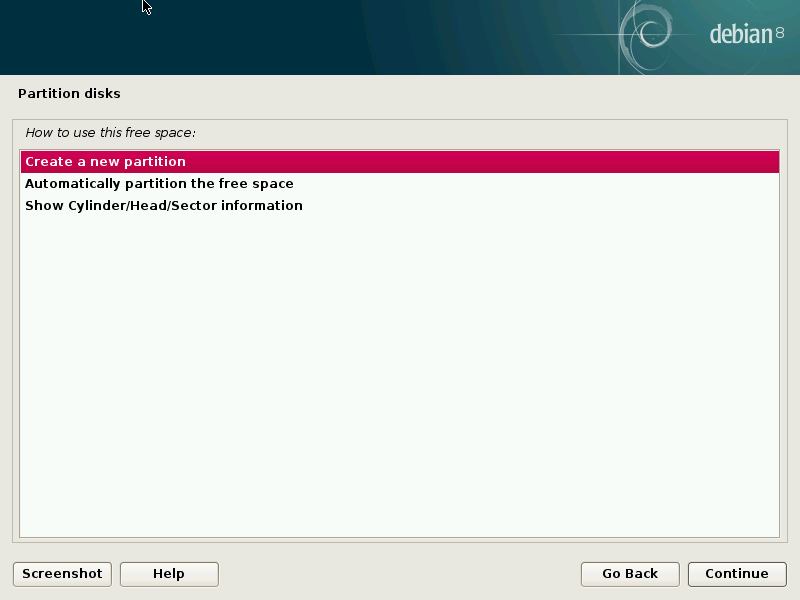
- Of course a new partition.
-
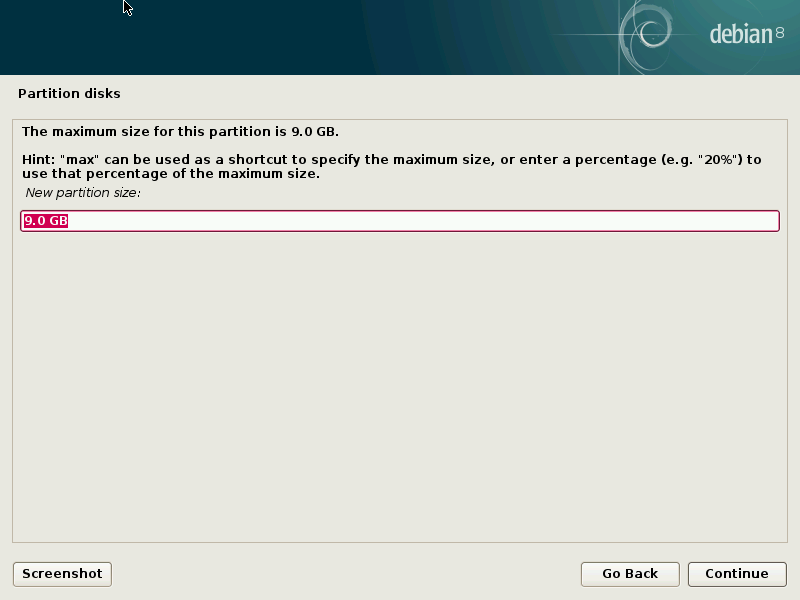
- We’ll use up the rest of the space.
-
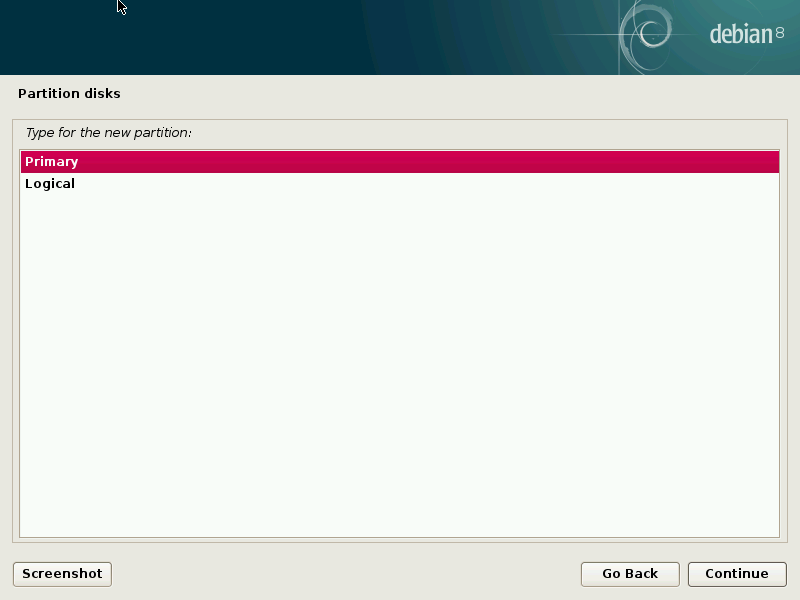
- Just going to make another primary partition.
-
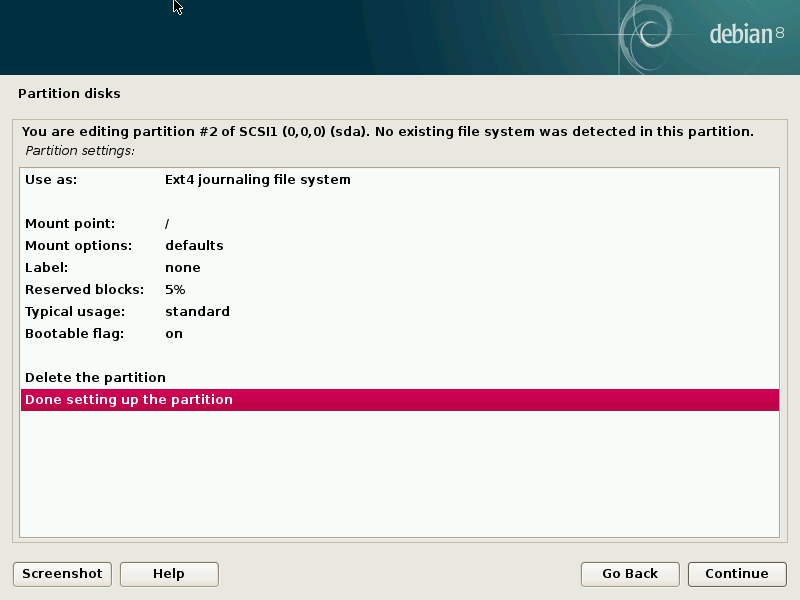
- Mount point and bootable flag are very important.
-
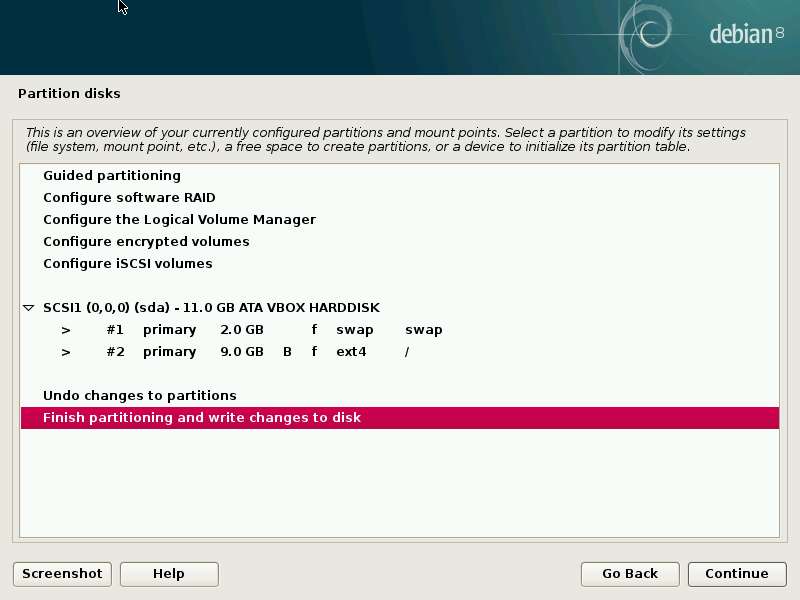
- Time to finish partitioning.
-
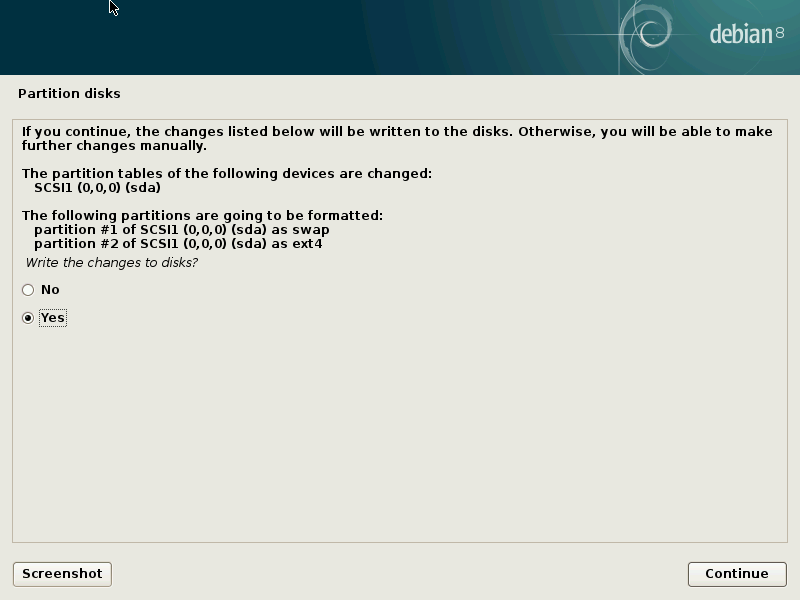
- Confirming we really want to do this.
-
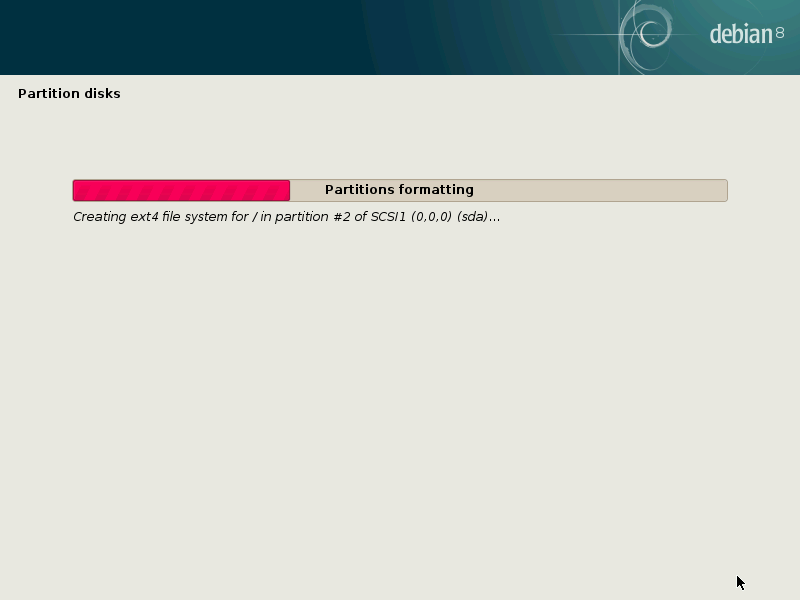
- Writing and formatting your new partitions.
-
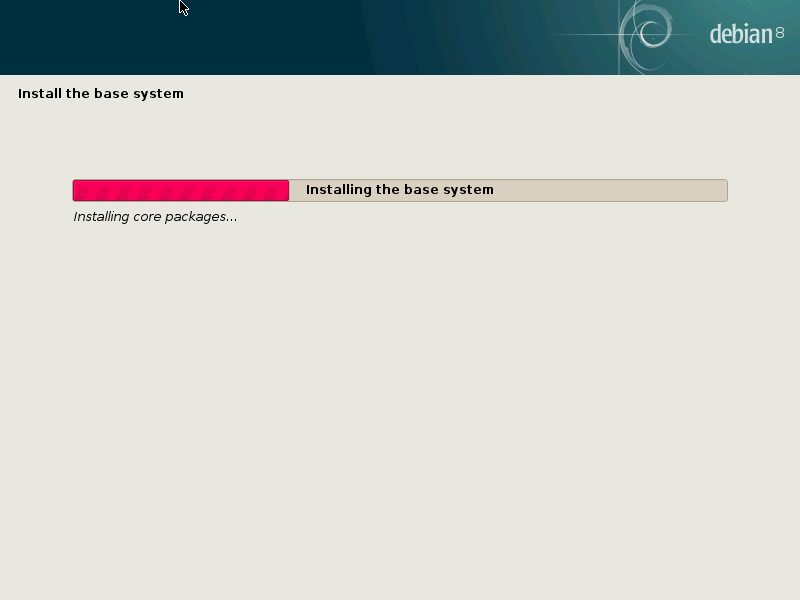
- Installing base system.
-
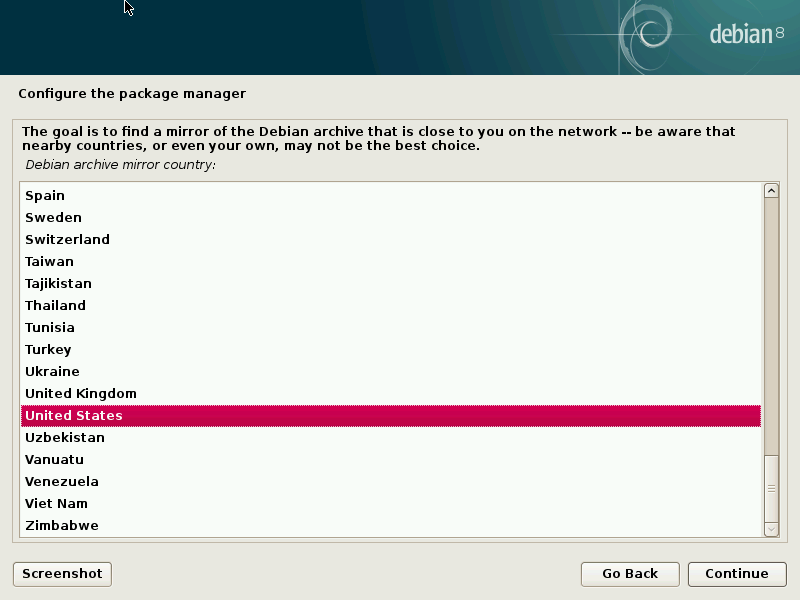
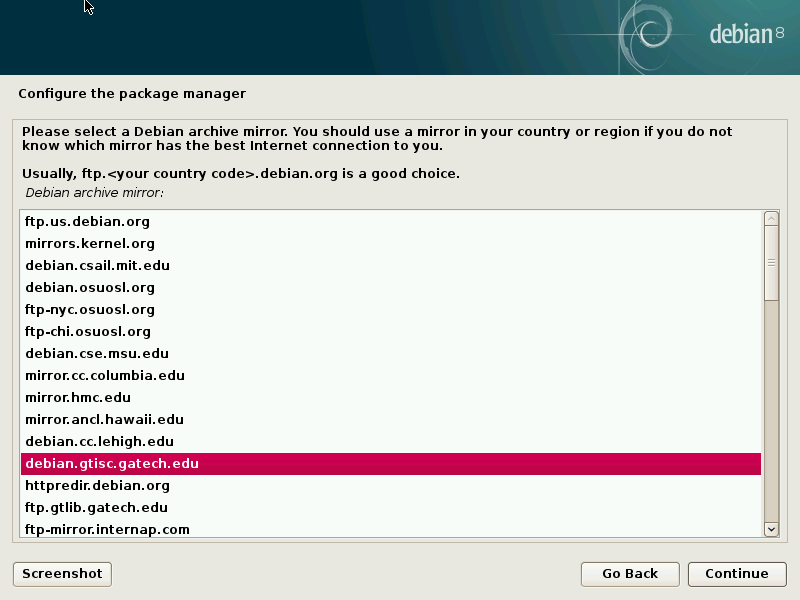
- Choose your location for getting system updates.
-
- Choose whatever you want here..
-
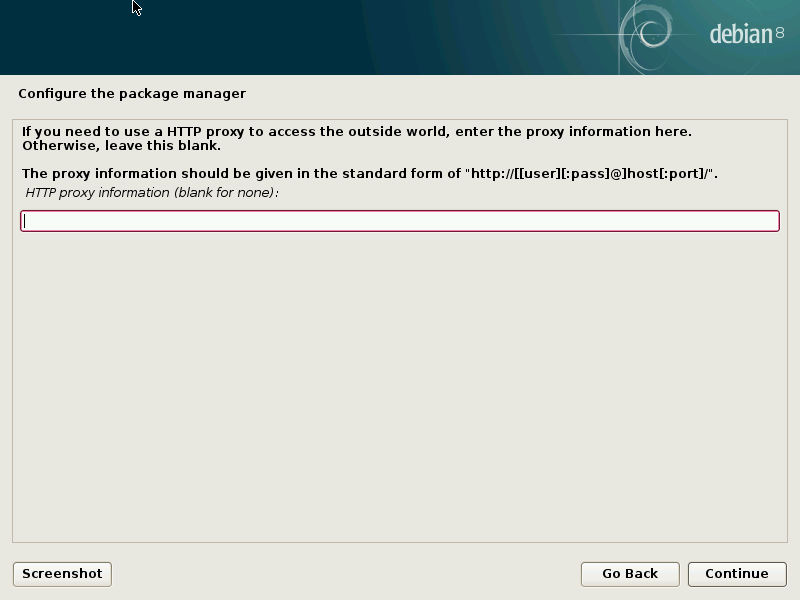
- You probably don’t need a proxy.
-
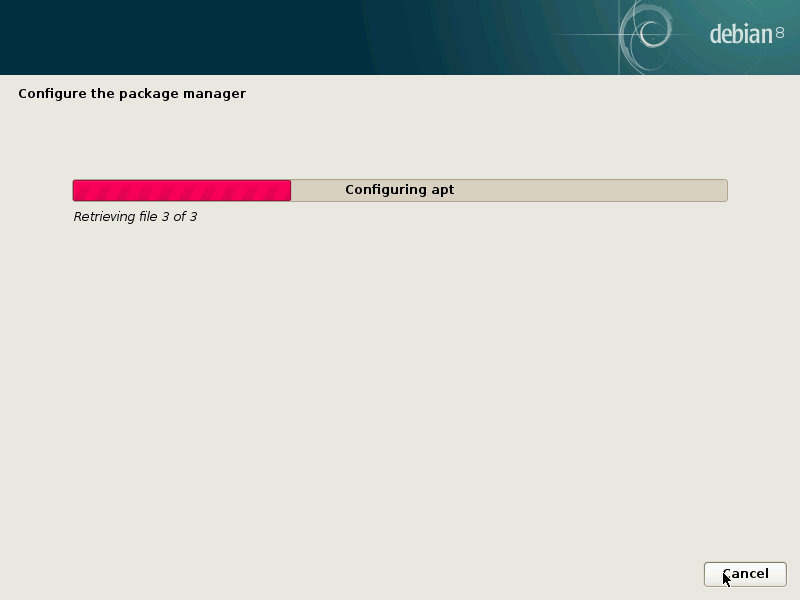
- Downloading package lists.
-
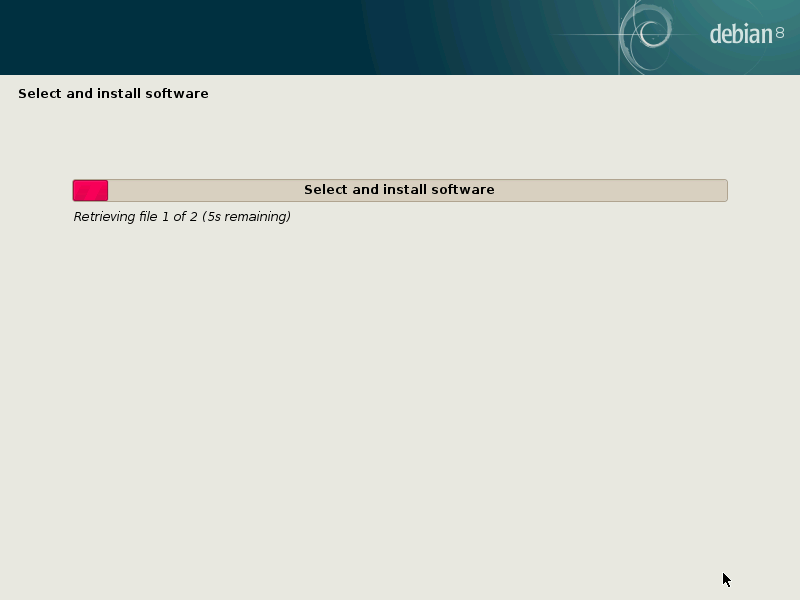
- Grabbing packages to install.
-
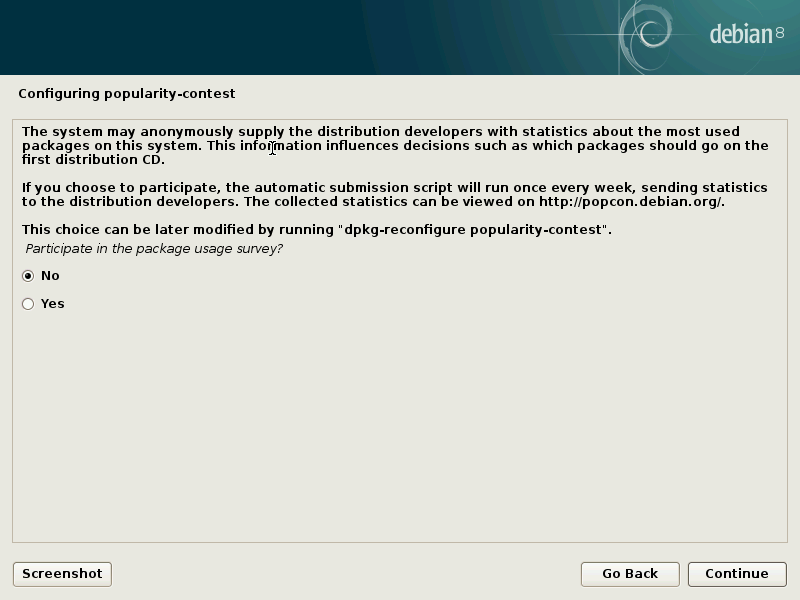
- I don’t care for popularity contest.
-
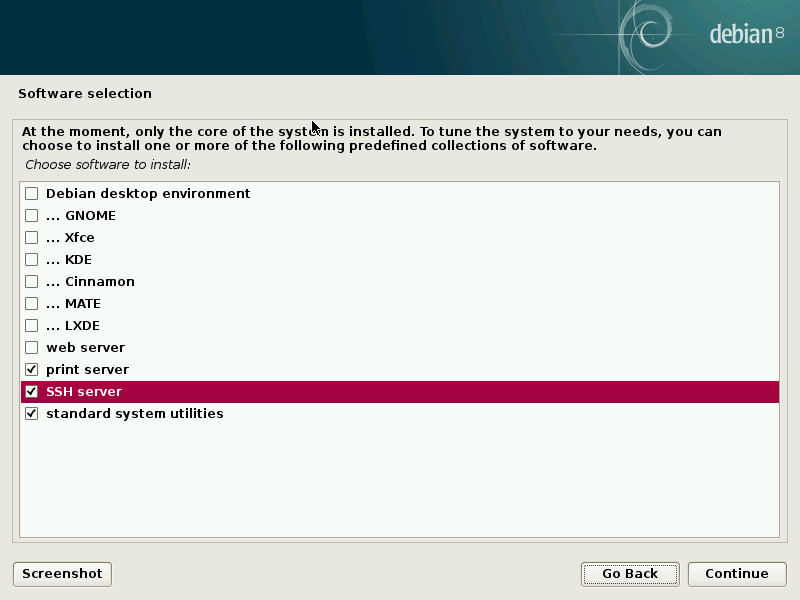
- Remember, we want to get dumped to command line after the install finishes.
-
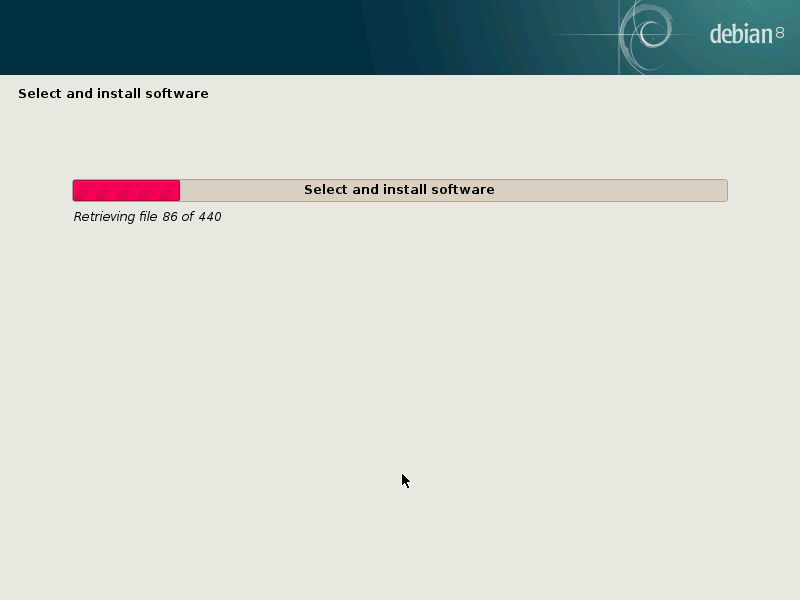
- Downloading and installing
-
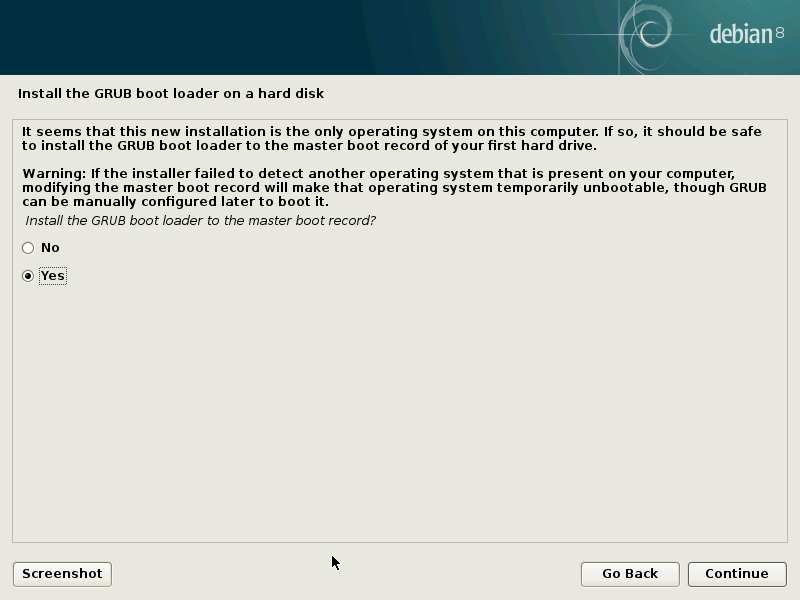
- YES! Or you wont be able to boot linux.
-
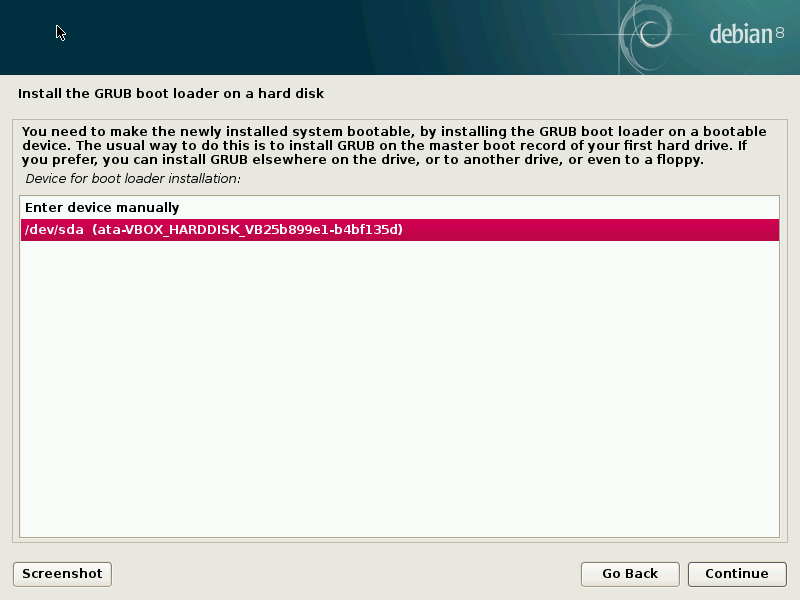
- Grub famously gets installed on the first hard drive.
-
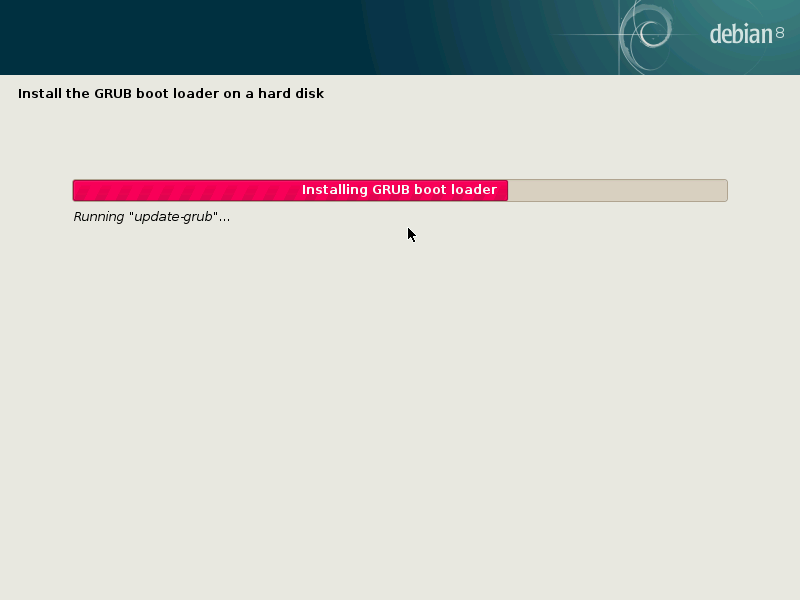
- Installing and updating grub configuration.
-
- Hit continue.
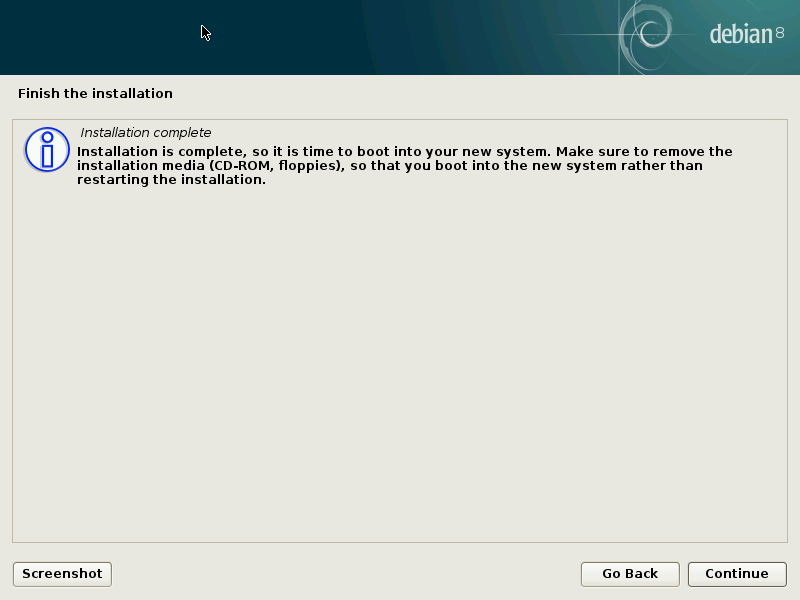
5. Changing repository attributes.
When restarted, login as root.
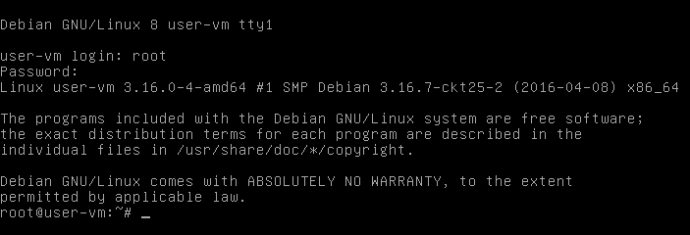
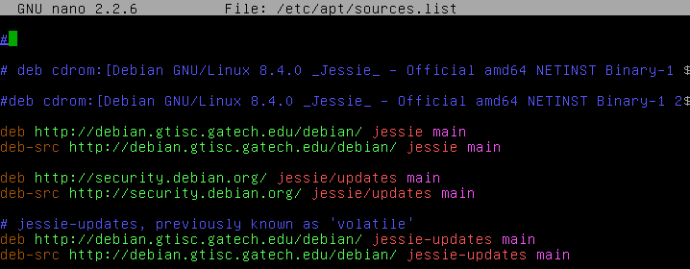
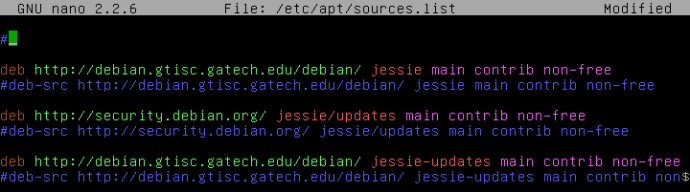
Time to modify your repositories with “nano /etc/apt/sources.list“.
Special considerations:
We are going to do a few things here. First I am disabling “deb-src” since I and most have no need to get source code to compile, and when I update the package listings in the future, that the source code package lists are not included for a faster package listing update. The other things I will be doing is enabling the “contrib” and “non-free” portions of all of the repositories regardless of source or binary repository (if I use the source repositories in the future this is less work; future proofing). “Main” only contains packages that conform to the debian free software guidelines. Contrib and non-free portions of all repositories are a little bit different. What they contain is third party software that is not necessarily considered part of debian, just made to work with it. In contrib and non-free you can get extra firmware and video and audio codecs (among other things); the contrib portion of the repositories tends to have dependencies in non-free (why I want to enable it all). The last thing I am going to do is get rid of any netinstall cd references since they are wasted space to me even after being commented out (especially since we are done with the install medium). So I end up with this; again, the repository mirror that you chose may differ from mine, we are at all not focused on the urls (don’t touch them). And so I have this (save changes with ctrl+x, and confirm that you want to save the file).
6. Using apt.
Now you need to update the system’s package listing of all the repositories with “apt-get update“, so we have access to the new repository areas we specified in sources.list by redownloading updated package lists. Anyway, you’ll see this happen. Also welcome to “apt” (advanced packaging tool, the debian package manager).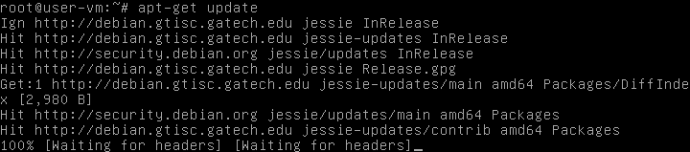
Finally, you are ready to install packages; anything you want. For this project though, we’ll stick with a few packages for turning debian into something intended for desktop use. We want “xorg” for video, “alsa-base” for audio, “network-manager-gnome” for a graphical front end to network connectivity (the other graphical front ends to network-manager aren’t as complete), “lightdm” for a graphical login and desktop manager, and “mate-desktop-environment” for a decent desktop environment. To download and install these packages you enter “apt-get install xorg alsa network-manager lightdm mate-desktop-environment“.
Or…
You can have a more meaty installation by entering “apt-get install task-laptop xorg alsa-base laptop-mode-tools cryptsetup live-config-systemd tor firmware-linux-nonfree firmware-ralink firmware-realtek firmware-atheros firmware-iwlwifi firmware-brcm80211 firmware-b43-installer flashplugin-nonfree lightdm mate-desktop-environment-core caja ufw dconf-editor caja-gksu caja-open-terminal mate-user-share mate-applets mate-settings-daemon mate-utils mate-control-center mate-notification-daemon mate-system-tools mate-screensaver mate-power-manager mate-system-monitor openvpn network-manager-gnome samba hardinfo pavucontrol leafpad iceweasel libreoffice-calc libreoffice-writer vlc gimp atril pidgin deluge gparted gdebi brasero engrampa galculator gpicview gksu synaptic xsane system-config-printer frozen-bubble chromium-bsu quadrapassel gweled remmina xrdp florence“.
After entering this command, you will see a big listing of all the dependencies that go along with these packages, and the choice of yes or no whether to download and install all of this great software. Yes of course!
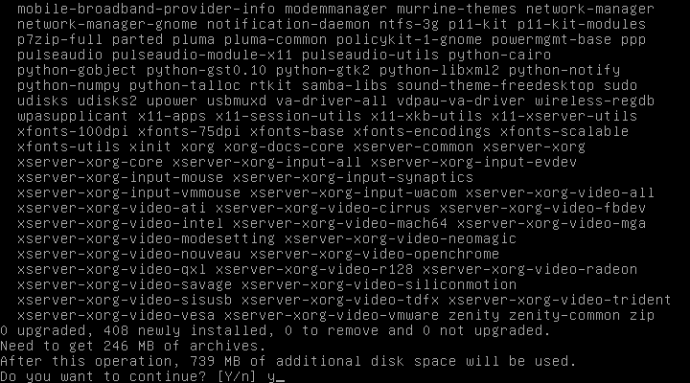
When everything is done being downloaded and installed, you will enter “reboot” to restart the computer
7. Done.
When restarted, you will see that grub has a background, you have a graphical login (don’t login as root), and when logged in provided with a desktop environment. You probably still need more programs; go get them! Otherwise consider yourself done.
-
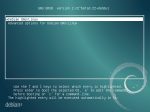
- Grub has a background.
-
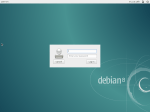
- You can login normally.
-
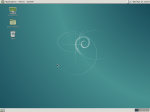
- Mate desktop.
Why, and the need?
1. Some people want to run a linux installation that is purely debian (as in no adulteration of the product from anybody except the user and debian developers).
2. Debian dumping you at command line is the way it’s done. Whether it be the netinstall, or the contents of debian’s repositories on multiple dvds (click here to download the iso’s for that). You’re still going to be stuck at command line using apt.
3. You can build up an operating system to have it exactly the way you want. Building up takes less time than gutting something else. Also, maybe you just need a debian installation for a singular purpose like a server of some kind. In that case, install only the server components, and then you’re done building up.
Conclusion…
This really wasn’t hard at all. In fact the easiest part was entering a few apt commands. Doing all of this is fun and has it’s purpose. Or, everyone can take the easy way out with by downloading my linux distribution.

